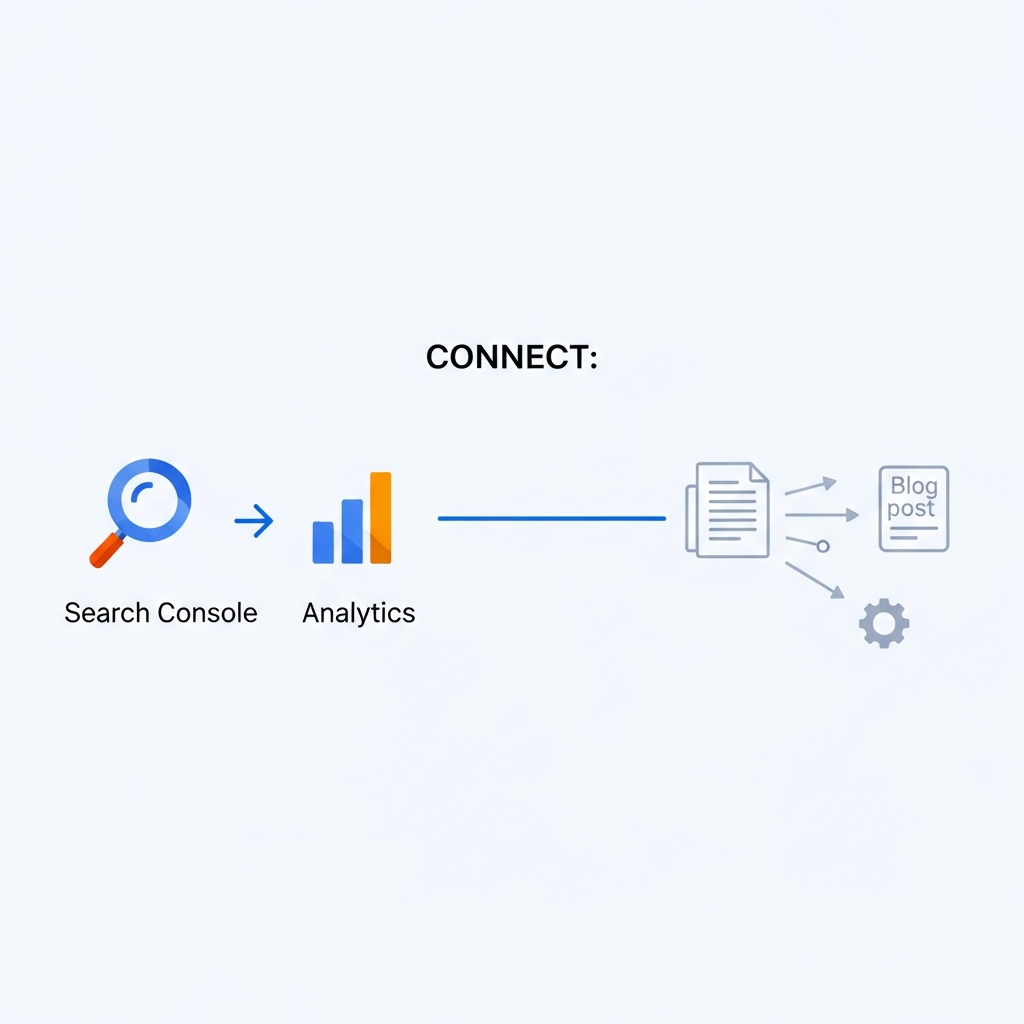
Connect: Search Console and Analytics for Auto-Published Posts
Why connect Search Console and Analytics for auto-published posts
When your content publishes automatically, you’re racing against time: you want your pages indexed quickly, you want to know how real readers find them, and you want to catch issues before they impact traffic. Connecting Google Search Console (GSC) with Google Analytics (GA) gives you a unified view of visibility and behavior for each auto-published post. You can capture indexing signals, monitor landing page performance, and surface issues such as crawl errors or indexing restrictions at scale.
This integration helps you close the loop between content production and performance. By tying publishing events to search visibility and user engagement, you can spot which formats, topics, and channels drive value. It’s especially valuable for sites that auto-publish to multiple platforms or multilingual sections, where manual checks become impractical. If you’re thinking about how to measure impact from automated publishing, this is your core workflow.
To get a concrete sense of what you’ll gain, consider these benefits: faster indexing feedback, unified dashboards combining impressions and on-site actions, and faster detection of issues that could otherwise slip through the cracks. For more on optimizing editorial workflows at scale, see our broader guidance in Editorial workflow for agencies.
As you plan, keep in mind that this guide aligns with a practical, implementation-focused approach. If you want a high-level overview first, or a quick start plan, you can also explore our homepage for an overview of how automations fit into publishing workflows: Asimpletool.
Prerequisites and access you’ll need
- Access to Google Analytics 4 (GA4) property and permission to modify data streams and events.
- Access to Google Search Console (GSC) with ownership or full permissions for the property you publish to.
- A CMS that hosts your auto-published posts and can accept events/parameters from GA4 (a common setup is WordPress, Webflow, or another modern CMS).
- A plan to publish consistent post URLs and sitemap structure so Search Console can crawl them reliably.
Before you start, ensure your CMS publishes clean, crawlable URLs with sensible canonical tags and that your robots.txt does not block important sections. If you’re unsure, refer to the localized publishing guide for practical checks in different markets.
Step-by-step setup: linking GA4 and Search Console
Step 1 — Prepare GA4 and a data stream
Start with a GA4 property that collects data from your site’s pages. If you already use GA4, verify you have at least one data stream—this is how GA4 receives pageviews from your auto-published posts. Ensure enhanced measurement is enabled for helpful events (page_view, scroll, and others you might want to customize).
In your CMS, implement the GA4 measurement ID (G-XXXXXXXXXX) in your site’s global header or via your tag management tool. If you’re new to GA4, this is a good time to map key post pages to known events, so you can tie impressions to actual post performance later.
Step 2 — Set up a Search Console property and verify access
Make sure your auto-published posts live under a property in Search Console you control. If you publish to multiple domains or subdomains, you may want to add them as separate properties. Verification ensures you can access indexing reports and perform URL inspections when needed.
Search Console provides invaluable signals about crawl issues, indexing status, and sitemap health. When combined with GA4, you gain a complete view of how search visibility translates into user engagement on your site.
Step 3 — Link GA4 and Search Console
In GA4, go to Admin > Property > Product Linking and choose Search Console. You’ll be prompted to select the Search Console property you want to associate with your GA4 property. Linking enables shared insights such as landing-page performance from search impressions and clicks.
After linking, GA4 will begin to surface Search Console data in reports and explorations. This creates a foundation for cross-referencing indexing signals with on-site behavior for auto-published posts.
Step 4 — Enable event tracking for auto-published posts
Define a standard event that fires when a new post publishes. For example, you might send an event named post_published with parameters like post_id, post_type, category, and publish_date. This helps you filter performance by content type and track how each post performs over time.
Implement the event using your CMS’s scripts or via Google Tag Manager. If you’re unsure how to set this up, our onboarding resources outline a straightforward approach to embedding analytics in editorial workflows.
Step 5 — Configure conversions and goals
Decide which on-site actions count as conversions for auto-published posts (for example, newsletter signups, content downloads, or product purchases). Create GA4 conversions tied to events and tie them back to post-level performance so you can see which auto-posts drive real value.
If you’re evaluating how to measure post performance over time, consider a simple model: impressions and clicks in Search Console paired with engaged sessions (time on page, scroll depth) in GA4. This gives you a quick sense of both visibility and quality.
As you implement, remember that you can reference broader templates for content planning and publishing at our localization and publishing guides and editorial workflow resources.
Defining events for auto-published posts
Events are the connective tissue between your CMS and analytics tools. They let you segment posts by topic, author, or publish date, and they enable more precise reporting in GA4 and in GA dashboards.
Recommended event schema
- post_published: captures when a post goes live, with parameters like post_id, slug, author, category, and publish_date.
- post_view: fires when a post page is viewed, with metadata about referrer, device, and location.
- post_engagement: includes events like scroll_depth, time_on_page, and interactions with embedded media or CTAs.
By standardizing these events, you can create explorations in GA4 that answer questions like: Which topics publish fastest, which categories retain readers, and which posts generate the most downstream conversions. If you want a practical reference, see our guide on scalable editorial workflows at Editorial workflow for agencies.
In addition to events, consider sending a small set of custom dimensions (e.g., is_auto_published = true) to distinguish auto-published content from manually published posts. This distinction helps you compare performance across publishing methods in GA4 reports.
Monitoring indexing and performance
Indexing is the gatekeeper for your content’s appearance in search results. Use Search Console to monitor index status, crawl errors, and the overall health of your auto-published posts. For new posts, the URL Inspection tool lets you check if Google has crawled and indexed a specific URL, and whether any blocking issues exist.
In GA4, pair impressions (from GSC) with on-site engagement metrics (page views, scrolls, conversions) to understand how indexing translates into meaningful visits. You can also create custom funnels that start with a search click and end in a conversion or a long-engagement session.
To keep things actionable, set up automatic alerts for indexing anomalies (for example, a sudden drop in impressions, a rise in crawl errors, or a spike in 404s on auto-published URLs). If you’re curious about deeper indexing signals, check the Index Coverage reports in Search Console and consider submitting updated sitemaps when large batches of posts publish automatically.
As you monitor, you can reference related guidance on automation in our editorial workflow article for context on publishing cadence and quality controls.
Dashboards and reporting ideas
Bringing GSC and GA4 data into a single view helps stakeholders understand impact quickly. Consider dashboards that combine:
- Impressions, clicks, and click-through rate for auto-published posts by topic
- Engagement metrics (sessions, time on page, scroll depth) by publish date and channel
- Indexing status by URL, post type, and author
- Conversion events linked to specific posts
Practical setup tips:
- Use GA4 Explorations to blend post-level engagement with search signals (impressions/clicks) from Search Console.
- Create a Data Studio/Looker Studio report that automatically refreshes with the latest GA4 and GSC data.
- Automate alerts to notify your team when a post fails to index or when a post underperforms on key metrics.
As you design dashboards, reference the broader CMS integration patterns we cover in our guides, and feel free to explore our onboarding content for practical tips: Editorial workflows and local publishing scenarios.
Common pitfalls and how to avoid them
A few issues commonly derail tracking for auto-published posts. Here are quick fixes to keep you on track:
- Blocked pages: Ensure your robots.txt allows crawling of auto-published post URLs and verify there are no meta robots noindex tags on new content.
- Canonical confusion: Use consistent canonical URLs to avoid duplicate content problems across posts that share topics or templates.
- Incremental publish delays: If your CMS publishes in batches, verify that URL submissions to Search Console occur promptly and that sitemaps reflect new posts.
- Gaps between GA4 events and actual posts: Validate that event fires for all post types and that there are no filters blocking data from auto-published pages.
To minimize risk, build a simple pre-publish checklist and use a validation script that checks a handful of critical signals (URL validity, canonical tag, presence of post_published event, and GA4 data flow) before going live with a batch of posts.
For more on scaling and governance, you can review our broader guidance on editorial operations at Editorial workflow for agencies and related localization patterns in the Sao Paulo guide linked above.
If you want to see how others structure their automation, consider checking our general publishing tools overview or case studies via our homepage: Asimpletool.
Starter checklist for a successful integration
- Create or verify your GA4 property and a data stream for your site.
- Confirm Search Console ownership and property access for your domain(s).
- Link GA4 with Search Console to enable cross-reported insights.
- Define a standard post_published event with relevant metadata.
- Configure conversions and goals tied to auto-published posts.
- Set up a simple dashboard that blends GSC impressions with GA4 engagements.
- test with a small batch of posts and monitor indexing and performance over 2–4 weeks.
- Establish alerts for indexing changes or sudden performance drops.
As you implement, you may want to explore additional automation templates and ideas in our other guides. For a practical example of how teams structure automation, read our editorial workflow article or our Sao Paulo publishing guide for localization nuances.
Ready to take the next step? Consider booking a consultation to tailor this integration to your publishing cadence and content goals.
Internal resources: Asimpletool | Editorial workflows | Localization publishing